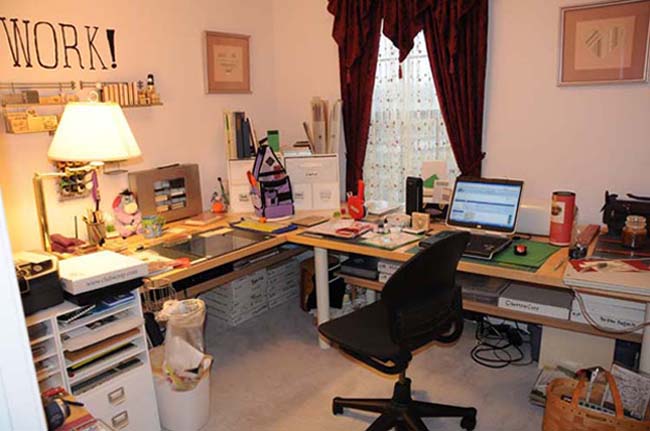
Stacey Julian stated that you can only scrap in the way that you are organized. She's so right. Since I got married, I've been taking digital photos and storing all of them on my laptop. Those photos are organized and I've scrapped myself up to date with them. Yes, I'm caught up.
But most of my earlier photos, from my childhood and after college years are printed out and tossed into boxes somewhere. Those are not organized. I'm not really caught up. But I've made the decision to scrap in digital, so having those paper photos doesn't help me any.
Today, I picked up the first of not that many albums and started scanning. It took all morning, but I have finished well over half of that album. The photos are scanned at a fairly high resolution, so that if possible, I can blow the pictures up a little bit and not have them look too horrible. I'm also planning to use up the paper pages I finished with no photos on them and put some photos on layouts.
I might not have pictures organized for all of my life, but the first few years are organized and the most recent four years are organized. It's a step in the right direction.
Sunday, May 31, 2009

Friday, May 29, 2009
A Link to a Tutorial and Words About Linking
This tutorial really helped me. I don't have objects floating above the background anymore. In a nutshell, I copy a section of background and put it over my object as a new layer, then use a brushtip on the eraser tool to fade the edge. My copied section is put right back on top of where I took it out with the object in the middle of the layer sandwich. If I line the section up with the background, I don't notice it at the edge where it isn't faded. That can be hard to see, so I'll sometimes use a grid (the shortcut is Ctrl+' to turn grids on or off) to keep track of where the section should go.
When I've got it the way I want it, I link the faded section layer and the background layer so they stay aligned with each other. If I need to move the background, I won't have problems with the copied section staying lined up. A merge won't work, I would lose all that fading unless I merge my object layer sandwiched between the background layers. Linked layers don't have to be next to each other in the layer order. I can put any number of layers between them and I can link more than two layers together at once.
To link layers, I make the first layer active and hold the Ctrl key as I select other layers. I right click on any one of the selected layers and click on 'link layers' in the middle of the list. A little bit of chain will show up next to each of the layers that is linked. To unlink all of the layers, I select one of the layers that is linked and right click. Then I click on the option to select linked layers. Right click again on any one of the linked layers that are all now selected and click to unlink them. If I just want to unlink one layer, I select the layer I want removed from the link, right click and then select to unlink layers. The layers are linked only in alignment. If I move one layer, I'll move all the layers that are linked to it.
When I've got it the way I want it, I link the faded section layer and the background layer so they stay aligned with each other. If I need to move the background, I won't have problems with the copied section staying lined up. A merge won't work, I would lose all that fading unless I merge my object layer sandwiched between the background layers. Linked layers don't have to be next to each other in the layer order. I can put any number of layers between them and I can link more than two layers together at once.
To link layers, I make the first layer active and hold the Ctrl key as I select other layers. I right click on any one of the selected layers and click on 'link layers' in the middle of the list. A little bit of chain will show up next to each of the layers that is linked. To unlink all of the layers, I select one of the layers that is linked and right click. Then I click on the option to select linked layers. Right click again on any one of the linked layers that are all now selected and click to unlink them. If I just want to unlink one layer, I select the layer I want removed from the link, right click and then select to unlink layers. The layers are linked only in alignment. If I move one layer, I'll move all the layers that are linked to it.
Something Big is Broken
There are websites all over that have failed this morning. The error messages are many and varied. That's usually a sign that some huge relay has failed and that a computer in one part of the world can no longer talk to other computers and put together a web page.
However, I broke down and set up a Twitter account. I haven't had it for two days and already a person I can't remember where I met has started following me. Then again, she has a big list of followers. It might be that she just picked me at random. I dunno.
I set it up so I could stay in touch with family, not strangers and casual friends. I'll see what happens.
However, I broke down and set up a Twitter account. I haven't had it for two days and already a person I can't remember where I met has started following me. Then again, she has a big list of followers. It might be that she just picked me at random. I dunno.
I set it up so I could stay in touch with family, not strangers and casual friends. I'll see what happens.
Thursday, May 28, 2009
Manual Dependance?
I was working on a layout this morning and I wanted to intersect two selections. Do I remember the keyboard shortcut for this? Hah! I could add to a selection, I could subtract from a selection. Intersect? I had to look it up. Most of the time, the shortcuts are the same for different tools. It's a small favor, but it's a favor I'm grateful for.
When I can work without looking things up on a regular basis, then I'll know I've really learned Photoshop. When all you do are the same few things, it's pretty easy to remember how to do them. But I'm always trying different things and it's not always easy to remember how to do them.
Each day, I have some small, but useful discovery. Today, I learned more about the Transform options. The keyboard shortcut for Free Transform is Ctrl+T. Or, you can go to Edit>Free Transform.
The object on the active layer will have a box around it with handles on the box. Up in the toolbar, a set of options will appear.
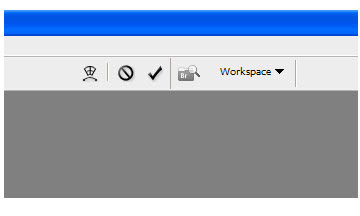
If you click on the transform button that resembles a shape being curved, you'll be able to access the free transform options. When you are done with your transformations, click on the check mark next to the transform button to apply your transformations and exit free transform. If you are having an attack of fail, click on the 'not' button and you will exit free transform with nothing changed.
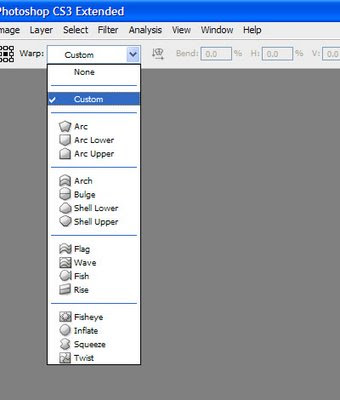
Those presets can be lifesavers and they are certainly time savers. Once your layer has been transformed by a preset, you can move to the custom setting and fine tune the adjustments.
If you are still in transform mode and have not applied or exited, Photoshop will act like it has locked up. You won't be able to do anything that isn't a transformation. You can't switch tools, you can't switch layers. You must either apply or exit to keep working.
When I can work without looking things up on a regular basis, then I'll know I've really learned Photoshop. When all you do are the same few things, it's pretty easy to remember how to do them. But I'm always trying different things and it's not always easy to remember how to do them.
Each day, I have some small, but useful discovery. Today, I learned more about the Transform options. The keyboard shortcut for Free Transform is Ctrl+T. Or, you can go to Edit>Free Transform.
The object on the active layer will have a box around it with handles on the box. Up in the toolbar, a set of options will appear.

If you click on the transform button that resembles a shape being curved, you'll be able to access the free transform options. When you are done with your transformations, click on the check mark next to the transform button to apply your transformations and exit free transform. If you are having an attack of fail, click on the 'not' button and you will exit free transform with nothing changed.

Those presets can be lifesavers and they are certainly time savers. Once your layer has been transformed by a preset, you can move to the custom setting and fine tune the adjustments.
If you are still in transform mode and have not applied or exited, Photoshop will act like it has locked up. You won't be able to do anything that isn't a transformation. You can't switch tools, you can't switch layers. You must either apply or exit to keep working.
Wednesday, May 27, 2009
Don't Believe Every Tutorial You Read!
Not even mine. Free advice is worth what you pay for it.
I had this tutorial about how to create and save a set of brushes. The directions said, "...pick a set of brushes that you are going to delete" as part of the instructions. That would be true if there were a limit to the number of sets you could have.
Nope. There is not a limited number of brush sets possible in Photoshop. You don't have to delete or re-name an existing set of brushes. You don't even have to append to an existing set unless you want to. When saving brushes in CS3, I can click on the brushes I want to save as a part of my new set and save only those brushes. So if I created three keepers and four fails, I can save just the keepers.
So! I've tossed out that tutorial. It was incomplete and incorrect.
FWIW, when loading brushes, it can be a hassle to find the exact set you want. Make sure to save your sets with descriptive names that make sense to you. It's OK to rename a downloaded .abr file to a more descriptive name. Renaming a file won't change the contents of the file. Make sure you don't change the file extension, though. Deleting it and typing it back in while you are changing the name is OK.
I had this tutorial about how to create and save a set of brushes. The directions said, "...pick a set of brushes that you are going to delete" as part of the instructions. That would be true if there were a limit to the number of sets you could have.
Nope. There is not a limited number of brush sets possible in Photoshop. You don't have to delete or re-name an existing set of brushes. You don't even have to append to an existing set unless you want to. When saving brushes in CS3, I can click on the brushes I want to save as a part of my new set and save only those brushes. So if I created three keepers and four fails, I can save just the keepers.
So! I've tossed out that tutorial. It was incomplete and incorrect.
FWIW, when loading brushes, it can be a hassle to find the exact set you want. Make sure to save your sets with descriptive names that make sense to you. It's OK to rename a downloaded .abr file to a more descriptive name. Renaming a file won't change the contents of the file. Make sure you don't change the file extension, though. Deleting it and typing it back in while you are changing the name is OK.
Monday, May 25, 2009
Not the Tricky Extraction
I was goofing around in Photoshop and the next thing I knew, I had done this. All the paper and embellishments are from Lorie Davison, of Scrapbook Graphics. Is it Fine Art? No, but it makes me giggle. You'll recognize hubby, and that's me up on the wall.


Timing is Everything
I love my husband, truly I do, but he's got the worst timing... Last night, I was working on finishing up a tricky extraction and he was heading down to his man palace to watch some TV. He didn't want me to feel abandoned, so he started rubbing my shoulders as I was trying to put in points. Ummm.... no. That won't work.
This morning, he forgot that his phone has the worlds most annoying, alerting alarm set at five million decibels and it went off and woke us up. Twice. He can fall back to sleep, I can't. So instead of sleeping late on this holiday weekend, I was up at 6:00 am again. He got up at 6 yesterday because he wanted to go play golf. With a neighbor who woke up at 9:00. I almost got to sleep late on Saturday, but he got up and mowed the lawn bright and early, before it got too hot.
Why is it that when he has a holiday weekend, I don't got any sleep?
This morning, he forgot that his phone has the worlds most annoying, alerting alarm set at five million decibels and it went off and woke us up. Twice. He can fall back to sleep, I can't. So instead of sleeping late on this holiday weekend, I was up at 6:00 am again. He got up at 6 yesterday because he wanted to go play golf. With a neighbor who woke up at 9:00. I almost got to sleep late on Saturday, but he got up and mowed the lawn bright and early, before it got too hot.
Why is it that when he has a holiday weekend, I don't got any sleep?
Subscribe to:
Posts (Atom)

 Posts
Posts

